Adding programs to your Startup Folder
Do you have a favorite program that you’d like to start as soon as Windows does — perhaps your email client? I have told you in previous articles about stopping programs from loading at boot, and today I’ll tell you how to reverse the process, and gain further control your computer’s behavior.
Tip of the day: It seems a lot of you have been interested in how to remove unwanted programs from your Startup Folder, and if you’ve done so, you already know how to navigate to and open it. For today’s tip I’m going to use as an example adding Outlook Express, so that it will automatically open for you when you turn on your machine and start your day. Because if you’re like me, one of the first things you do is check your email…and you like to save steps and time. I will also show you a different way of navigating to the folder.
In the previous articles I told you that when you deleted programs from your Startup Folder you we not deleting the programs — merely shortcuts to the program. Today we’re going to add a shortcut.
In Windows XP, start by opening My Computer, either by Start >My Computer, or double-clicking the My Computer icon on your desktop. Now double-click the Local Drive (C:) icon, [you may get a window saying “these files and folders are hidden”. Just click on the “view these now” link.] and then locate and double-click the Documents and Settings folder.
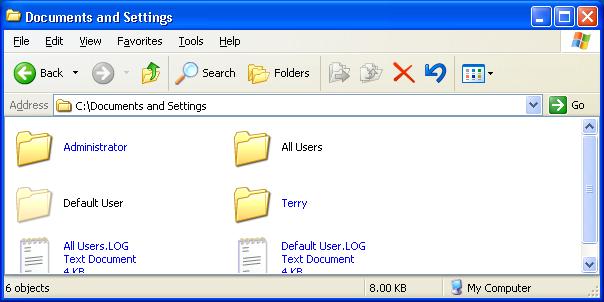
If you wanted to make a change for all the users of your machine you would open the All Users folder. Since we are customizing the start-up behavior just for ourselves, we open the folder that matches our User Name — in this machine’s case, the folder named “Terry” (it’s a long story…Sharp-eyed, security-conscious types will notice that the Aministrator account hasn’t been renamed on this machine — a “no no”.). Now we look for and open the Start Menu Folder. Open it and then open the Program folder, and finally, Startup.

As you can see, this User Account has no programs at all listed in its Startup folder. That doesn’t mean that no programs launch at boot. The programs I do want, (antivirus, firewall, etc.) I want to have run no matter who is using the machine, so they’re listed in the All User’s Startup folder.
In Vista, it is a little different: the Startup folder is listed in Programs, accessed from the Start button. Click Start >Programs and scroll down until you see the folder labeled Startup. Double-click it to open its contents window and drag your shortcuts into there.
Adding a program shortcut is easy, and it’s easiest if there is already an icon on the desktop (which is also a shortcut, btw). Simply right-click on the icon and drag it into the open Startup window, and let go. A menu will open: select “Create shortcut here”. And that’s it. You’re done.
If there isn’t a desktop icon, hover your mouse over the Start button, and then Programs. Now the list of all your programs appears. Again, simply right-click and drag the ones you want, as outlined immediately above. Now the next time you boot Windows, those programs will open for you automatically. A neat little trick.
Today’s free link: Trillion For those of us who use IM. This tool lets you combine your various IMs into a single “control panel”. From website: “Trillian™ is a fully featured, stand-alone, skinnable chat client that supports AIM, ICQ, MSN, Yahoo Messenger, and IRC. It provides capabilities not possible with original network clients, while supporting standard features such as audio chat, file transfers, group chats, chat rooms, buddy icons, multiple simultaneous connections to the same network, server-side contact importing, typing notification, direct connection (AIM), proxy support, encrypted messaging (AIM/ICQ), SMS support, and privacy settings.”
Copyright © 2007 Tech Paul. All rights reserved.
| Share this post : |  |
 |
 |
 |
 |
 |
 |
 |
 |
 |
 |
47 Comments »
Post your Comment/Question
• About Tech Paul
 I am a Retired computer & network technician. I used to think the machines were pretty cool. Now I don’t.
They’re anything but.
I regularly posted how-to’s and tricks & tips and general computing advice here starting in 2007. (Use the Search tool to find answers. But be aware, many are rather dated.) Sometimes I answered (your) specific questions in an article if I believed the answer was generally helpful to “everyone”. All the writing you see was my own, typos and all. There always is/was an implied “IMHO” in what you see here.
Note: You are responsible for using this blog and its content. I am in no way liable for any losses caused by user error, viruses and/or other malware, hardware or software failure, or any other conceivable reason.
-
Say "thank you!" Buy Tech Paul a cup of coffee (and keep T4E ad free).

-

-

McAfee® Cybersafety Resource Portal, an online help center designed to assist victims of computer crime and provide information on how to avoid becoming a victim.
-





 Subscribe to Tech--for Everyone by Email
Recent Comments
-

-


-
-
Also:

-
-


 Tech - for Everyone
How can i do this using a batch file automatically adding a batch program to start-up folder. without the persond knowlodge.
LikeLike
You can find what you need here:
http://support.microsoft.com/kb/314488
LikeLike
Sir or Ms,
I do appreciate reader participation, and I never have objections to referencing Microsoft KB’s, so I “allowed” your comment, and I thank you for your contribution.
But I see that strategy (Group Policy) as a method for Admins managing an AD environment (of XP Pro workstations) and not one for “average computer users” (consumer). (GPedit is not available in Home editions.)
LikeLike
Dike–
You, sir, obviously do not read this blog.
LikeLike
Thanks for the great information. I just suscribed to your blog feed.Michelle
LikeLike
thanks, your site is now at the top of my favorites
LikeLike
Actually, I don’t understand…all this did was add a program to the shortcuts on the top of my “All Programs” list on the Start bar. It didn’t actually start the programs when I booted.
LikeLike
Jerry–
If you click Start> Programs >Startup, and see the icon for your program, you have done the steps properly and the program should start when you boot.
I suspect that you stopped opening folders at “Start Menu”, and didn’t continue into “Programs” and then “Startup”.
Sometimes, tho rarely, there’s can be an issue if you drag a shortcut to a shortcut into the Startup folder.. You can make sure to avoid this by openning c:\Program Files and finding the “program.exe” icon for your desired app, and dragging from there.
If you still exerience issues, contact me at http://aplusca.com
LikeLike
Thank you for describin how to add a program in the startup folder.
Thanks a million :)
lucia
LikeLike
how to you get more than one instance of a program to start? For examply, internet explorer shoirtcuts…It will only start the first one on the list, rather than all of the different pages…
LikeLike
Hmmm.. In IE I use the “Open these tabs next time IE starts” feature.(To read my How To on this, click here.)
In short, I have several tabs open (in one instance of IE) to my main/favorite Sites (such as Webmail Inboxes), and before I shut down for the night, I close IE. I am then presented with the dialogue shown in the How To.
Then, when I next open my browser, those tabs re-open (to my chosen Sites).
I don’t really recommend putting too much into your start-up routine, as what you gain in convenience, you lose in time (It’ll slow your boot/Windows launch).
LikeLike
thanks
LikeLike
My startup folder has been deleted, how do I get it back?
LikeLike
Restoring A Deleted Item.
1) If you haven’t emptied the Recycle Bin, you’ll find it in there. Right-click on the item and select “Restore”. If you deleted it some time ago and it’s no longer in the Recycle Bin, you might try an undelete program (aka “File Recovery”).
2) Use System Restore to restore your computer’s state to a date before you deleted the item (this depends on the item). Sometimes you might have to go into your Backup copy of your system.. that you make from time to time to prevent data loss from hard-drive failures and such.
3) Recreate the item.
But in your case, I think all you need to do is reboot.
But I’m not sure.. I have never run across this before, and I can’t find an answer in the Microsoft Knowledge Base.
(I’ve been doing this for a long time, too!)
LikeLike
Thanks for the help on adding my email on start up
John
LikeLike
John,
Glad I could help. Thank you for the supportive comment.
LikeLike
techpaul,
Is there a way to have regular folders open on start up? I open 4 folders every morning and they stay open until shutdown at the end of the day. Any way to shortcut? Still running XP here…
I’m new to your site and you are already bookmarked!
Thanks!
LikeLike
Ashley,
The procedure is exactly the same as described above.
Open C:\Documents and Setting\user\Start Menu\Programs\Startup.
Then, right-click and drag a folder into that window, let go, and choose “Create shortcut here” from the menu that opens. Repeat for your other 3 folders.
When you boot up (start) your computer, those 4 windows will be open, showing the folder contents.
LikeLike
Is there a way to have the folders open on login with no access to the C: Drive? I work remotely from home and I log into the computer at work. My login has no access to the c: Drive… Thanks for the tips!
LikeLike
Machielle,
If I understand correctly.. you want your computer at home to automatically open a folder on a different machine… a machine that is at your work/office/job.
There are ways to do that, but your work’s IT department will be the ones to give you the “how to”. (They will probably write a small script, called a “batch file” for you.)
LikeLike
Hi ,
Just added a little exe file to my startup folder. works ok as long as I keep my account as “administrator”. The moment I change my user profile to “user” with limited privileges, it gives me an error. How to I allow this to run continue to run as a user?
LikeLike
Owen,
You might try placing a shortcut to the .exe in the User’s Startup folder, and change the shortcut’s Properties to launch the file “Run as administrator” (See this tutorial).
LikeLike
Thanks,
I did that already and ran into another problem – each time I boot up, the program tries to run and I get a pop up window asking for an administrator password. Problem is how do I automate this.
I also came across a “cmd” version thru”cacls” (access control lists) – but not having much success there either as it gives me an error message about user id not being mapped!
LikeLike
Owen,
As this is not the type of question helpful to “everyone”, and has the potential for misuse, I will simply refer you to a forum that has these types of advanced questions/answers (scripting/batch files/autorun), here, and tell you it can be done.
LikeLike
Thanks ,
I was looking for this for the last hal fhour.
LikeLike
športna trgovina,
Thank you for taking the time to let me know you found my efforts helpful.
LikeLike
This was VERY helpful.
LikeLike
Linda,
Thank you for taking the time to let me know you found my efforts helpful.
LikeLike
Hey, can you plz tell me that how can i add any program to startup using any program….? means if I ran it on anyone’s pc, it will directly put my file into startup?
LikeLike
Krushna Ratnaparkhi,
I am not sure that I understand what you are asking. And not sure what you mean by “anyone’s pc”.
But I can tell you that you do not want too many programs automatically launching at startup (boot). In fact, you want the opposite.
Further, that you generally tell the program whether or not to “launch when Windows starts” either during the install process, or by going into its “Preferences” (or “Settings”) .. or you can use the method the article describes.
I can further tell you that software licensing rules generally require you to obtain your own copy of the program (whether buy purchasing, or downloading) and need to be installed (to one device).
LikeLike
I visited several blogs but the audio quality for audio songs
existing at this web site is truly fabulous.
LikeLike
Yep, I enjoying listening to my tech websites full blast. I probably go through a dozen speakers in a month…feeding the bots and listening to tech..really loud tech…pretty fabulous. :)
LikeLike
delenn13,
I guess I’m going to have to be quicker on my spam deletions.. Or would that deprive you of too much fun?
;)
LikeLike
Paul,
Only if I am not busy. Is this the same as “feeding trolls”?
Bot owners really should know ..People who read tech sites usually will NOT click on a link they are unsure of..so they are wasting their efforts.
LikeLike
What I don’t get is why WordPress is missing so many very obvious ones.
And a lot of these people aren’t smart enough to know they need to fill in the.fields… they believe they just install it and sit back collecting cash.
… not that there aren’t very bright criminals out there…
But no. This isn’t like feeding trolls. These morons will never see your comment as they have no idea which of the “thousands of websites!” the linkblaster is going to post to.
LikeLike
Paul,
I hope you can help because I’m almost at the point of giving up!
By chance, have you posted the instructions on how to do this in Windows 8? Step by step with pictures included? If not, would you please consider? Otherwise, I’m going to do it manually! Not that I want to. Thank you so much.
LikeLike
Gwen,
It’s done the same way, but the Startup folder is a bit harder to find. It is in the AppData Roaming folder. Here’s an illustrated tutorial posted by a “competitor” the same as I would have: Windows 8: How to Add Applications to the Startup Folder.
To disable programs from starting up, that’s now done in Task Manager. Paul Thurott has this tutorial: Windows 8 Tip: Manage Startup Applications
LikeLike
Paul,
Thanks sooo much! It is now working just as I had hoped. Cool!
LikeLike
G. Peace,
Thank you for taking the time to let me know you found my writing helpful.
LikeLike
Hi Paul
Everyone is asking how to put programs into startup folder
But I want in my Vista to put in a dos-batchfile that I have written myself
Obviously such one is not installed or registered in reg.edit, so I can’t click
on something or make a shortcut (wouldn’t know how)
Is it the batchfile itself I should put here ? (Will it then be executed ?)
If curious my batch is simply this: (starting from c:\users\user)
c:\windows\system32\cmd.exe /K “doskey.exe /listsize=4096 /macrofile=c:\makroer.txt”
cd\
Hope you can solve this problem, I have looked through a lot of forums, geek-sites etc.
but not found an honest solution !
LikeLike
P.F. Kock, Copenhagen,
You put a shortcut to the batch file in the startup folder, and yes, it will then run at each boot. (A how to for creating a shortcut is here: http://www.computerhope.com/issues/ch000739.htm)
LikeLike
It boots like a dream, although the cd\ part didn’t work out
The prompt stays at c:\users\user
But I can live with that
Thanks for helping me out
LikeLike
P.F. Kock, Copenhagen,
Hmmm.. not my forte, but maybe it needs cd c:\?
LikeLike
Do i have to put shortcut or can i put the file itself?
LikeLike
Pink Floyd,
Off the top of my head, I think the answer depends of what type of file. Standard practice is to use a shortcut. (Which is no big deal, just right-click, drag-and-drop.)
But you can try your way.
LikeLike
Well it’s stand-alone .exe file.
LikeLike
Pink Floyd,
My answer is the same. (The norm for batch files, and other “executables”, is a shortcut.)
LikeLike